November 4, 2026
Feature Recap For Q3 Of 2026


Happy Fall! It’s time for another Feature Recap! We have some exciting updates to share regarding recent releases, DaySmart Payroll, and a brand-new integration partner we think is going to benefit a lot of our customers. You can find more information on the new features our team rolled out this past quarter below, but if you have any questions about them or feedback that you’d like to share with our team, don’t hesitate to reach out to us at support@timetopet.com. We’re always happy to help!
The first update we’re thrilled to share is that Time To Pet has partnered with Critter to help your business do more with the data that exists within your Time To Pet account. For those not familiar with Critter, it is a Customer Relationship Management (CRM) and marketing automation platform built specifically with pet care companies in mind. It’s intended to help you attract, retain, and reestablish a relationship with inactive clients using the information that you collect from your daily operations.
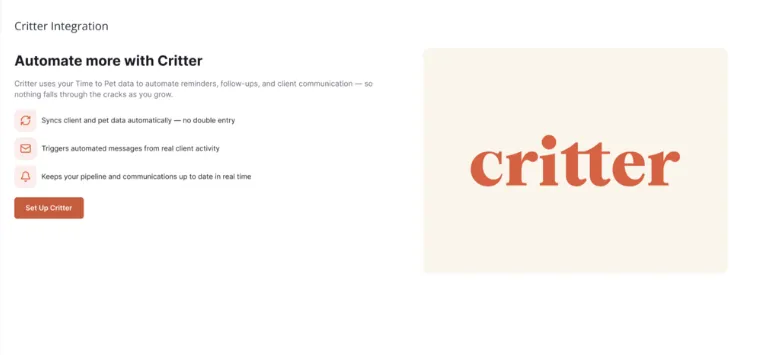
By integrating with Critter, you’ll be able to engage with your clients and gain clearer insight into what’s driving your revenue through a variety of features. Some of the things you’ll be able to accomplish are:
Critter is currently available in three plans: Starter ($49/month), Grow ($149/month), and Pro ($349/month).
For more information on how to connect to Critter, what data syncs over from Time To Pet, and more, check out our help documentation here: Critter Integration.
If you have any questions about the Critter integration, reach out to the Time To Pet support team at support@timetopet.com or use the chat beacon inside your Time To Pet Dashboard. For questions about Critter's features, plans, or onboarding, you can contact Critter directly at support@critter.pet.

This past month, we’ve made two updates to our DaySmart Payroll add-on that will make managing payroll data easier and give you more visibility if there’s something that needs your attention.
The first update we introduced was Pay Periods. You can now select predefined pay periods when generating payroll data, making it a simple process to pull the right staff hours, mileage, and scheduled events for each pay period. As a bonus, you can also now choose from your existing pay groups and generate payroll data for everyone within that selected group. No more need to jump back and forth between different views to find the dates you need!
And once your pay data is ready, send it directly to your payroll processor with just the click of a button.
The second update rolled out has to do with how errors are handled by the software. If something goes wrong when sending payroll data, you’ll now be able to see exactly which works were impacted and why. Clear error messaging makes it easier to identify and resolve issues. For example, if a staff member hasn’t been properly set up or doesn’t yet exist in the system, you’ll receive a notice when attempting to process payroll, and once the issue has been fixed, you just need to resubmit your data and you’ll be back in business.
Less time spent troubleshooting will make for a smoother payroll experience and leave you with more time to focus on your team and the pets in your care. Sounds like a win for everyone!
Interested in learning more about DaySmart Payroll? Check out our help documentation on it here: DaySmart Payroll.
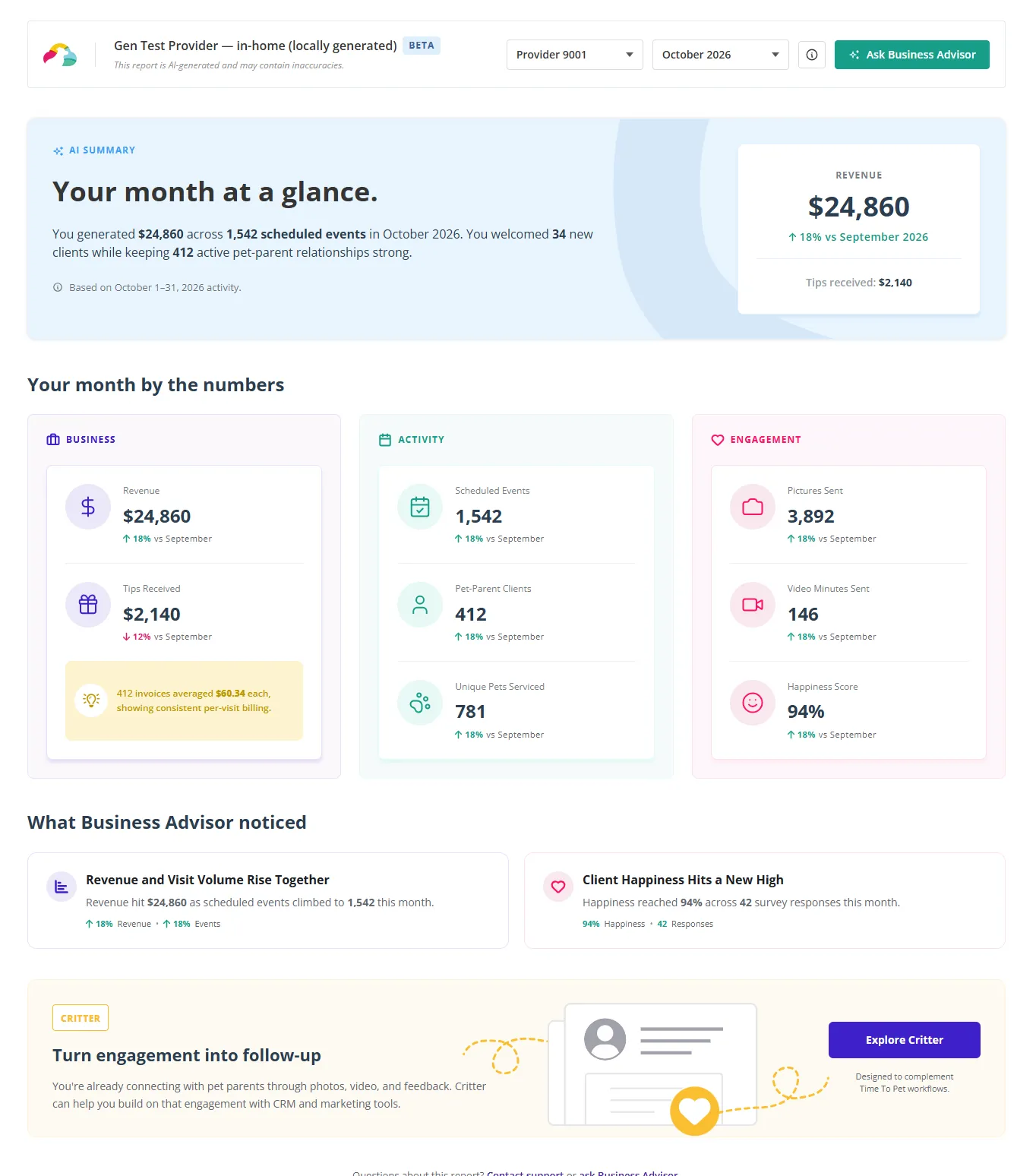
If you’ve ever wanted an overview of your Time To Pet account with values like revenue, happiness scores, and the number of events you’ve scheduled all together in one place, we’re happy to announce a brand-new reporting tool that we recently rolled out. Meet your Business Advisor — a monthly insight tool designed to give you a clear picture of your company’s performance with AI-generated analysis and actionable metrics. Only Administrators can access and view the reports generated by Business Advisor.
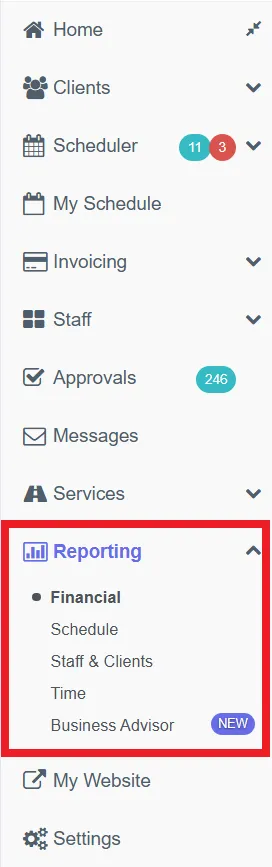
To access your Business Advisor Report, navigate to the Reporting > Business Advisor section of your Admin Dashboard:
Your report will open up in a brand-new tab where you can review your monthly data and insights. Each month, Business Advisor will generate a new report for your company. Your most recent report covers your activity from the first through the last day of the previous calendar month. For example, your report for the month of October would include data from September 1 through September 30.
But what all is included in these monthly reports, you might wonder? There are three main categories of information that Business Advisor provides insight on: Key Monthly Metrics, Trend Analysis, and AI Insights.
You'll see your essential business numbers at a glance, including revenue, visit count, client count, and pets served. These metrics are broken down into three main categories: business performance, engagement with clients and pets, and client satisfaction through Happiness Scores.
Each metric includes a month-over-month comparison, so you can quickly see whether you're trending up or down. This helps you spot growth opportunities and areas of your business that may need your attention.
Business Advisor analyzes your data and generates written insights about what's happening in your business. These insights highlight patterns and opportunities across your revenue, engagement, and client relationships.
If you have any questions about the information or next steps Business Advisor is showing you, you can use the Ask Business Advisor button at the top of the page to chat with your Advisor and gain further insight.
Business Advisor is designed to work seamlessly with your Time To Pet account. To learn more about how to get the most out of this feature, check out our guide on Understanding Time To Pet’s Business Advisor Reports. If you have questions about your report, values, or how to interpret your data, contact our Support Team at support@timetopet.com. We're always happy to help!


In August and September, we had the pleasure of hosting two incredible webinars by two of our favorite guest hosts: Michelle Kline of DogCo Launch and Doug Keeling aka Doug The Dog Guy.
The Profitability Playbook: Pricing, Fees, and Strategies For A Better Bottom Line took place toward the end of August and was one of our most popular webinars to date. We had over 600 pet professionals register for the event—and for good reason! Michelle shared indispensable tips on how to identify where you may be leaving money on the table, make strategic changes to your pricing and fees, and use Time To Pet to optimize your business and improve your bottom line, without simply working more.
Then, just last week on September 29th, Doug gave us an incredible presentation on how to find incredible pet care professionals to join your team through his Pet Care Hiring Crash Course. He shared practical, no-fluff advice to help pet care companies attract the right candidates, improve their hiring process, and build a long-lasting team that sticks around.
Didn't have the chance to attend our webinars? Not a problem! You can catch the recording in your own time by completing the form on our blog post about the events here & here to gain access. Keep your eyes peeled for more exciting webinars to come and thank you again to our wonderful panelists for sharing your indispensable wisdom and experiences with us!
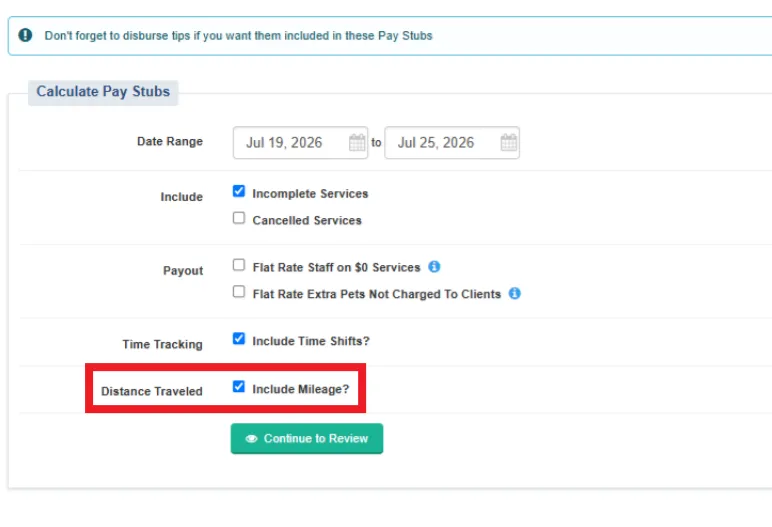
Up until now, if you used our Time Tracking tools to have your staff members clock in and out to track their work hours, there was an option to include Time Shift information when generating pay stubs (otherwise known as user invoices, depending on how you classify your staff members) while mileage tracking data had to be tracked separately. We’re happy to announce that, if you use our Mileage Tracking tool, you can now include this information on their pay stubs, as well!
You can do so by checking the Distance Traveled option during the first step of pay stub generation on the Calculate Pay Stubs screen.
For more information on how to set up Mileage Tracking for your staff members, we recommend checking out help documentation here: Time Tracking & Mileage Tracking. You can also check out our guide on Pay Stubs & User Invoices for more details on generating payroll information for your staff.
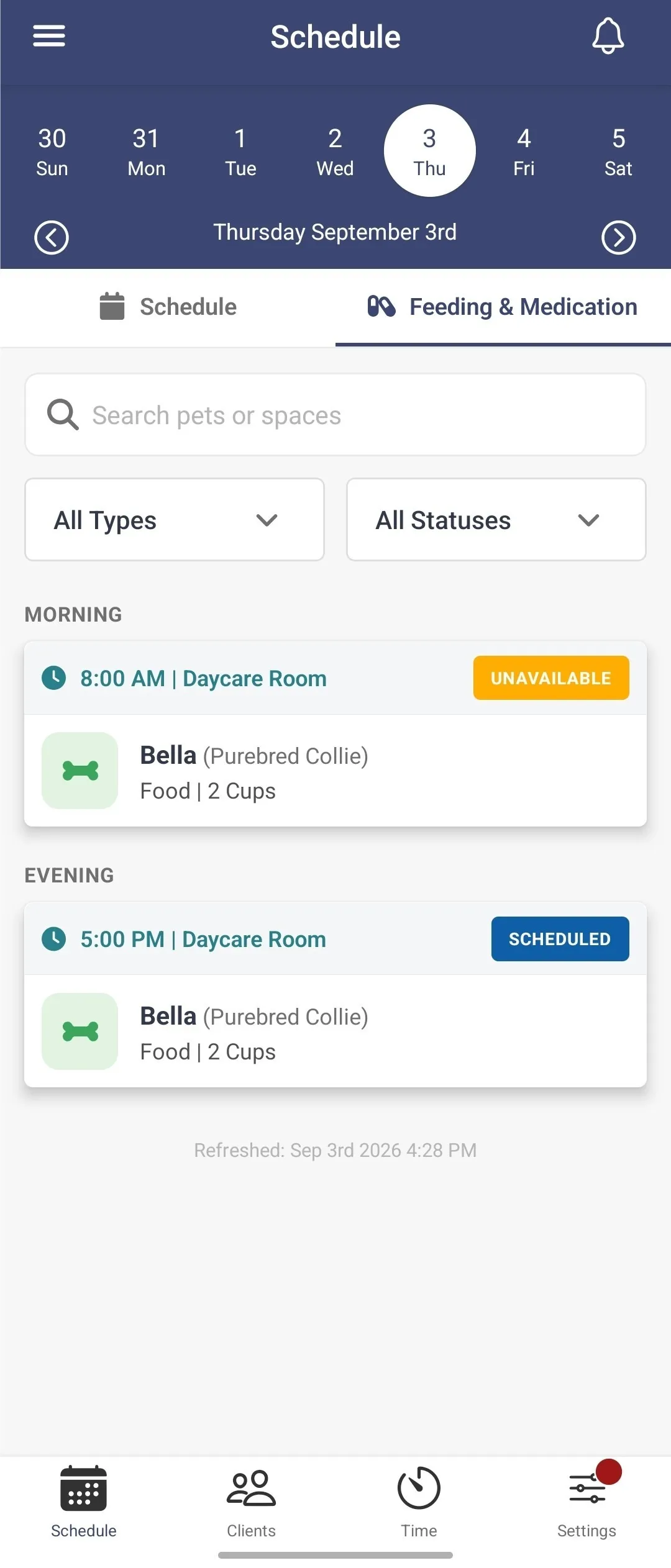
We have a wonderful update for our Facility users— Feeding & Medication Logs are now available in the Time To Pet Mobile App! This past year, our Mobile Development Team has added a lot of functionality to the Mobile App for Admins, especially for our In-Home platform, and now we’re looking to do the same for those who use Facility.
With Feeding & Medication Logs easily accessible on the Mobile App, you and your staff can now update pet records quickly, saving you time and ensuring that the pets staying with you are receiving the care they need right when they need it.
To access the Feeding & Medication logs, you will need to navigate to the Schedule section of your Time To Pet Mobile App. From this screen, you will see the Feeding & Medication tab, which will allow you to view and edit the feeding and medication instructions that have been outlined for each checked-in pet. You can also change the status to Completed, Unavailable, or Other; mark the time the food or meds were given; or jot down any necessary notes. Just tap directly on the pet's info card to pull up the Edit screen for that particular feeding or medication log:
For more information on how to create, manage, and view Feeding & Medication logs in Time To Pet Facility, please see our help article on Facility: Feeding & Medication Logs.
This summer, our Mobile Development team has been focused on a lot of under-the-hood work with releases aimed at improving stability, security, and performance on the Mobile App. On top of that integral work, however, our team is excited to announce that we’ve added another way for you to process payments for your clients! Time To Pet now supports Tap To Pay, making it easier and more convenient for both you and your clients to process invoice payments in person using the Mobile App!
In order to use Tap To Pay, you must be connected to Time To Pet Payments, our integrated payment processor powered by Stripe. If you’re not yet using TTP Payments and would like to learn more, check out our help documentation on it here: Credit Card Processing In Time To Pet. Tap To Pay supports Visa, Mastercard, American Express, Discover (U.S.), and Interac (Canada/Android), along with digital wallets including Apple Pay, Google Pay, and Samsung Pay.
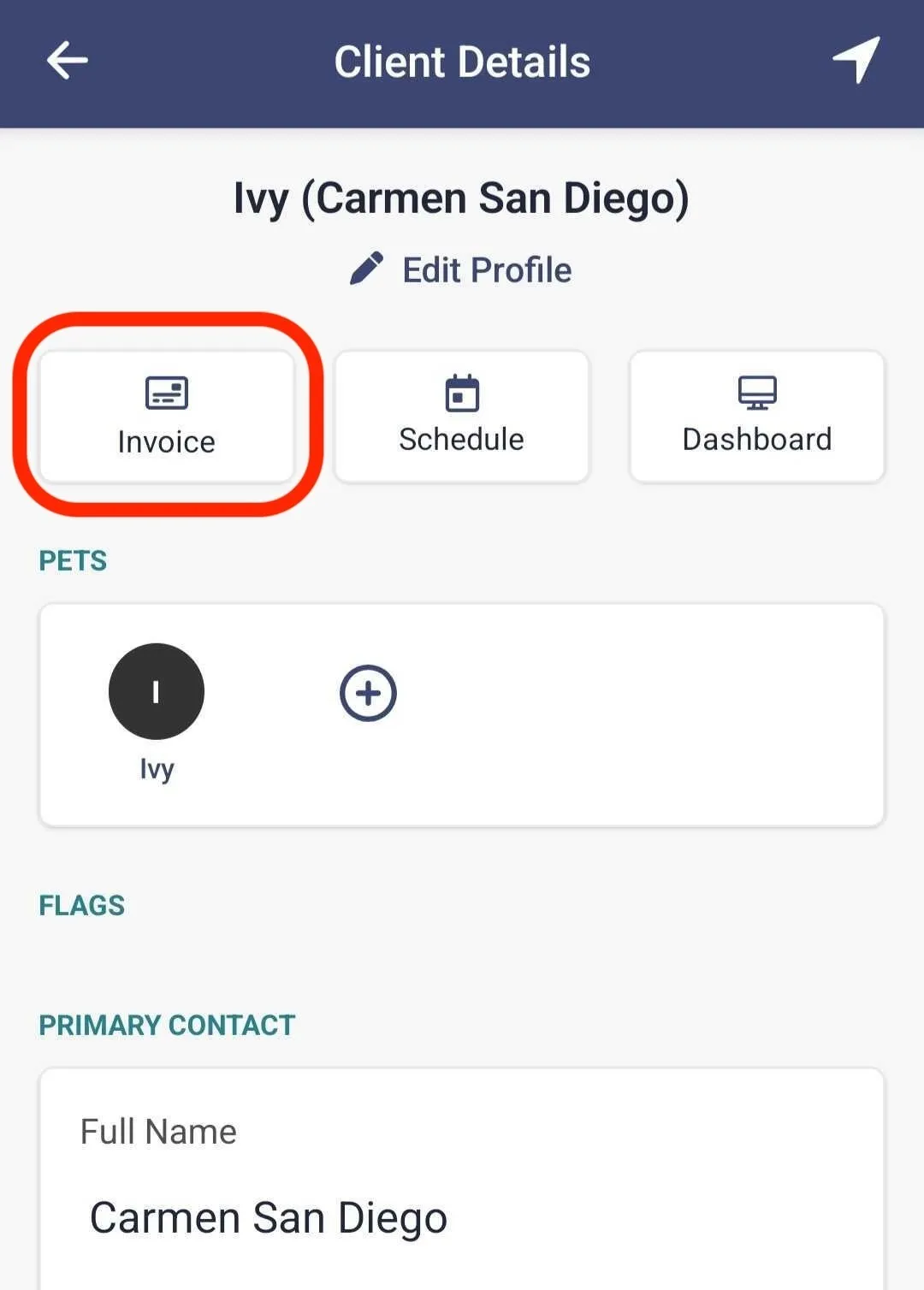
To process a client's payment using this method, open the Mobile App, navigate to their profile, and tap the Invoice option near the top of their profile:
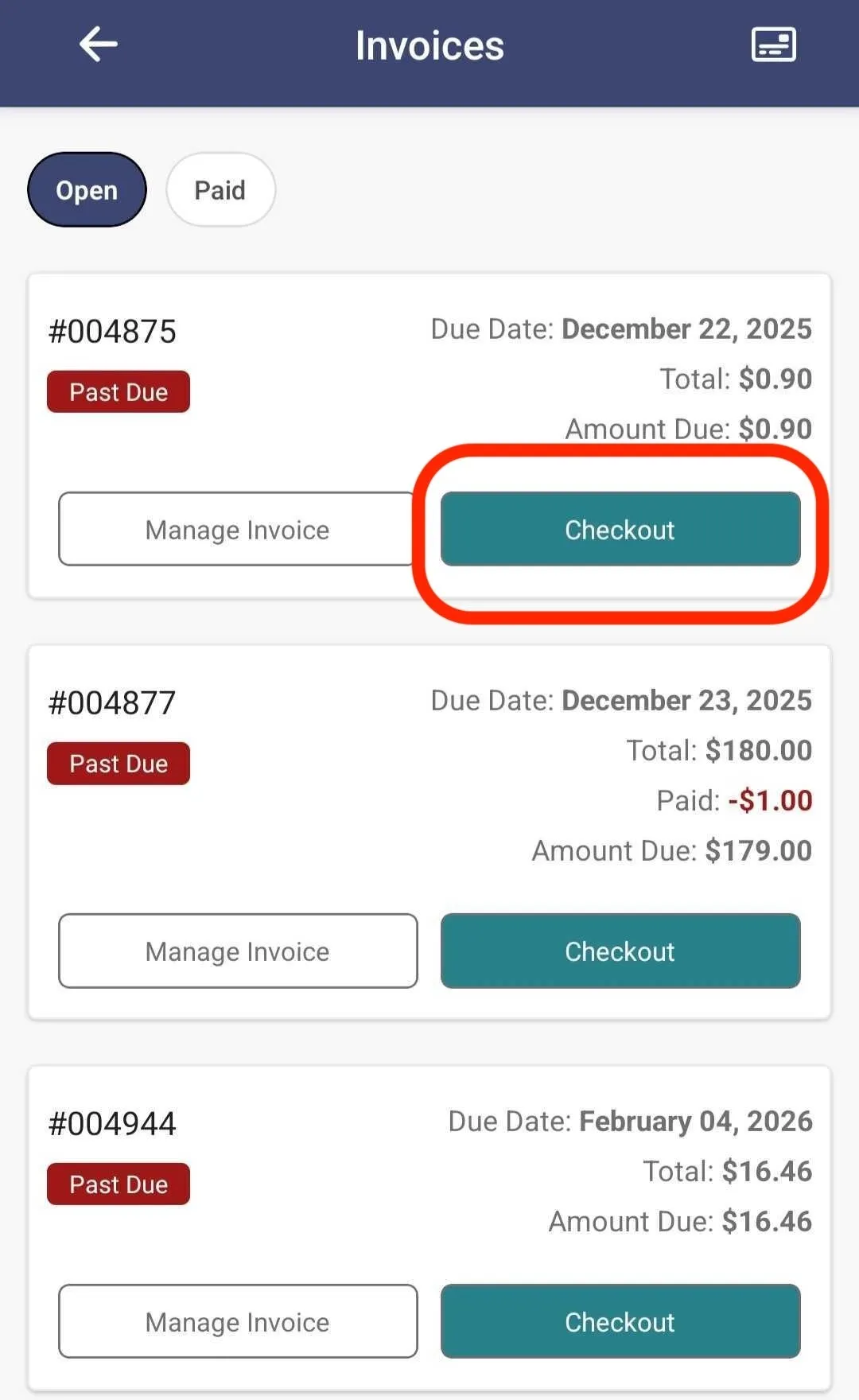
On the following page, tap Checkout with the invoice that the client would like to pay:
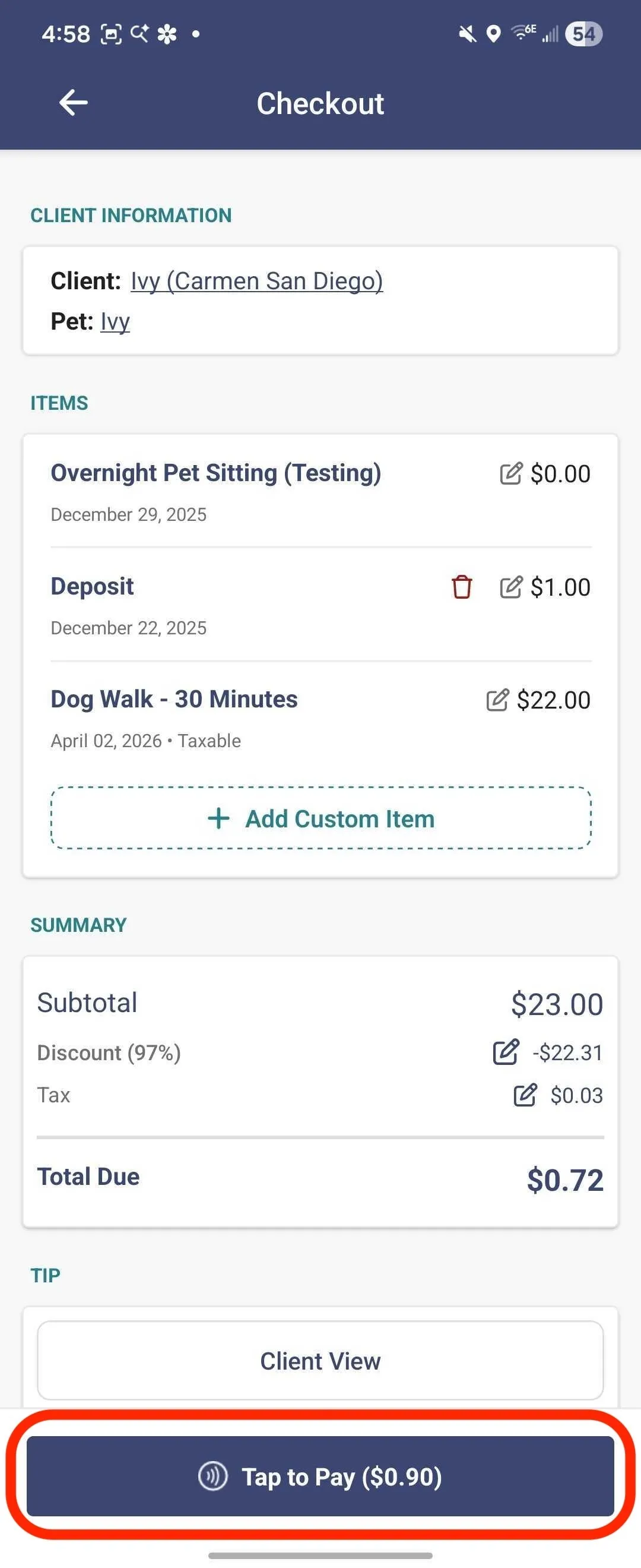
On the next page will be a summary of the invoice. If needed, items can be edited using the pencil icon. You can also adjust the amount to be processed if the client is making a partial payment. When ready to accept payment, tap the Tap To Pay button at the bottom of the screen:
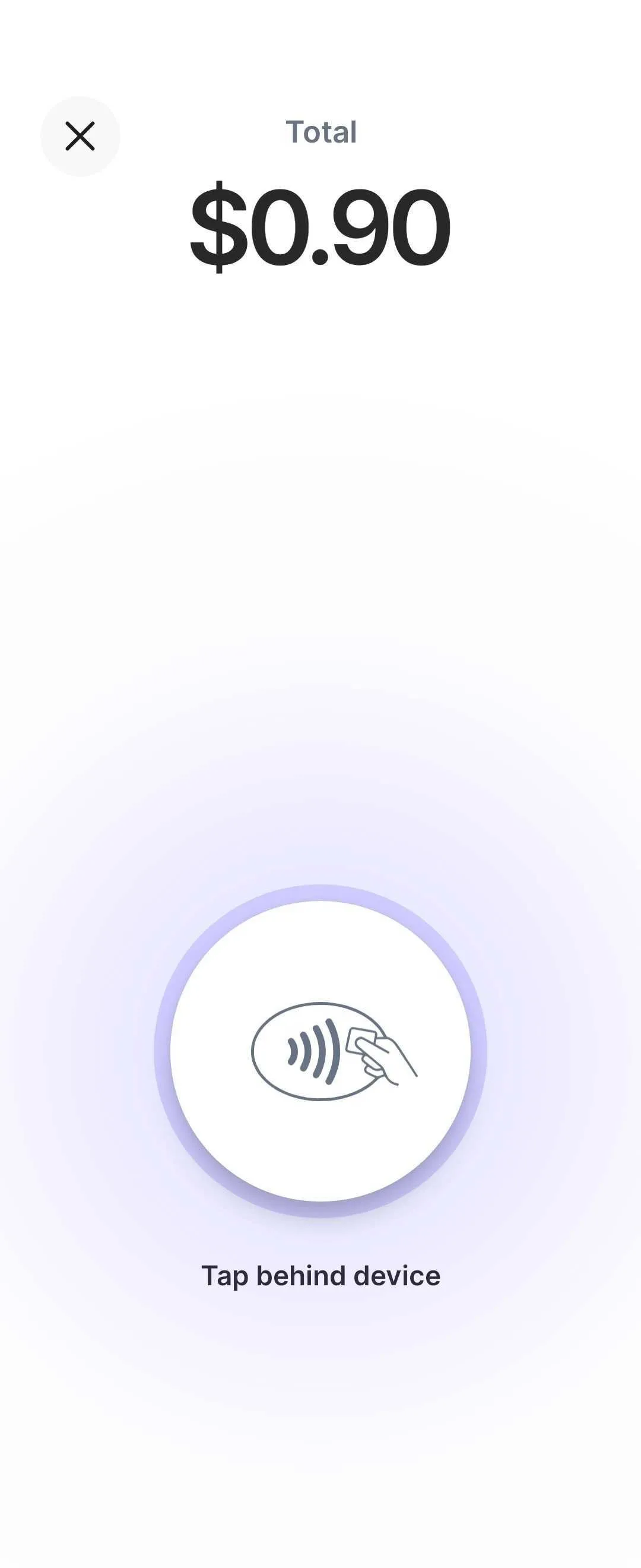
After selecting Tap To Pay, the screen will show the total payment to be processed. The client's card or digital wallet is tapped against the device to complete payment:
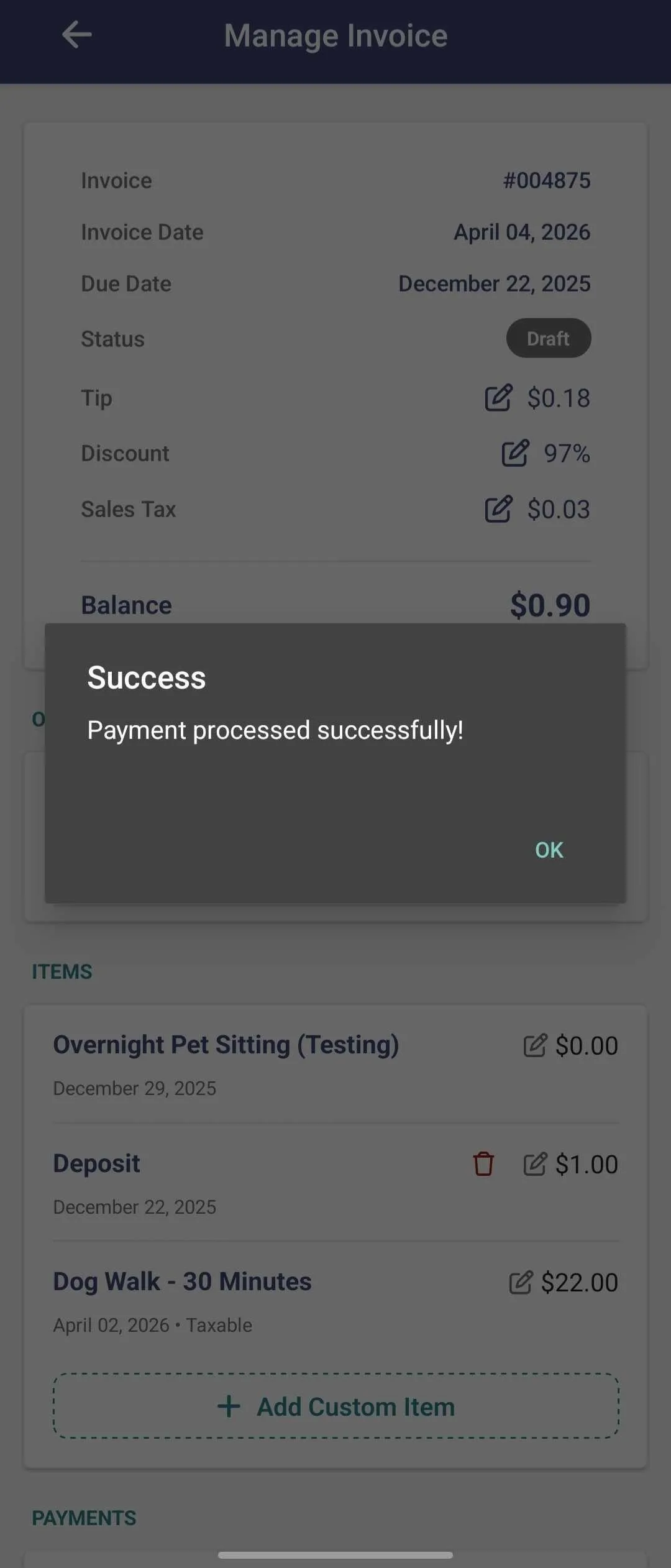
When the payment has been completed, the App will show that the payment has been successfully processed:
To learn more about this amazing feature, please take a look at our help documentation here: Using Tap To Pay In The Mobile App. For more information on managing your business from your Mobile App, see our Best Practices For Using Time To Pet In The Field guide to see what other features are available.
All-in-one pet care software trusted by 5,000+ businesses worldwide.